Switches and covers

Tuya (local)
Tuya Wi-Fi devices on the local network, protocols 3.1, 3.3, 3.4 and 3.5, and Zigbee devices behind a Tuya gateway. Each Wi-Fi device needs a local key, fetched once from the Tuya IoT Platform.
What it does
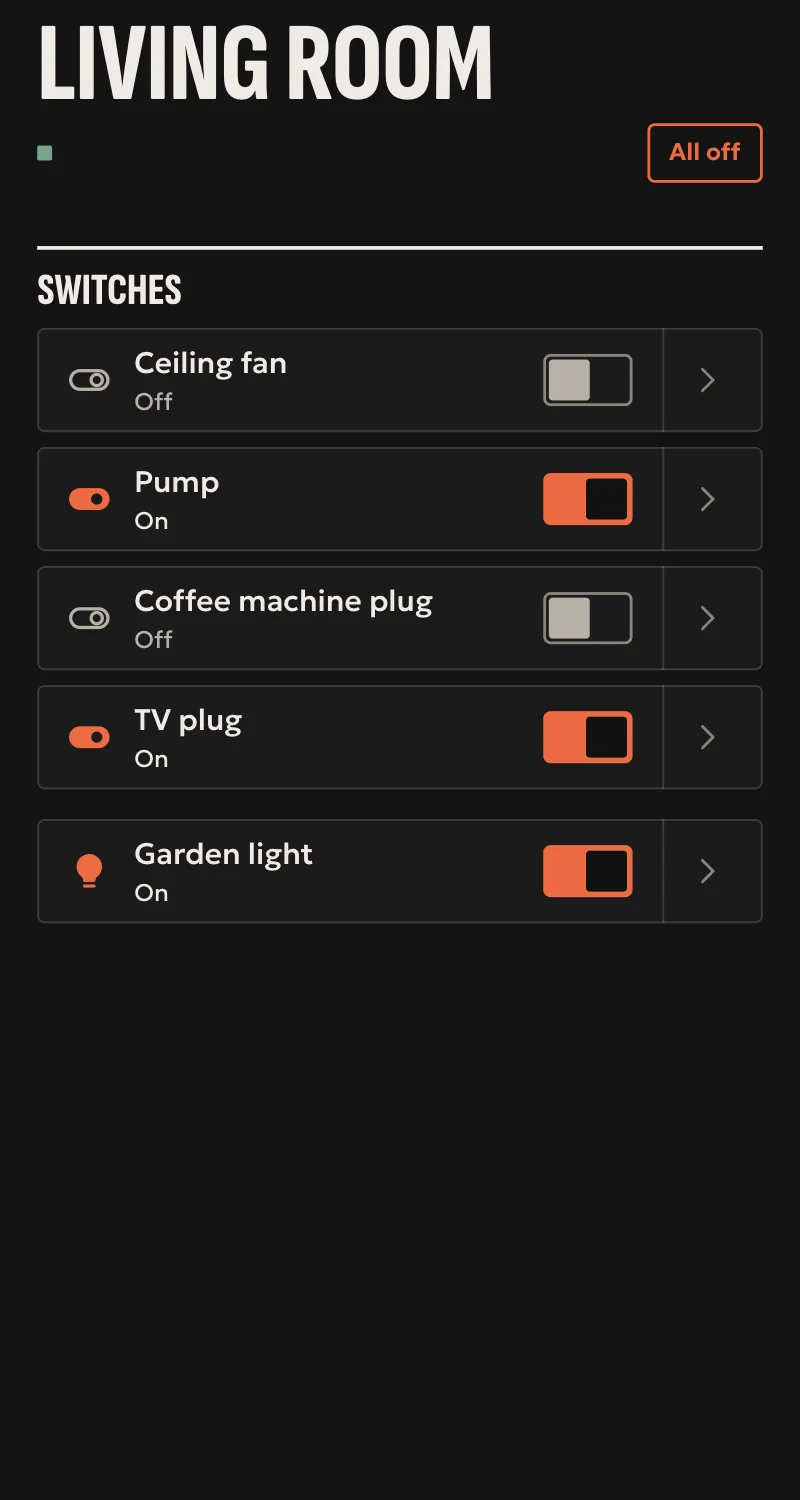
- Switches, lights with brightness, white and colour, curtains and blinds with position, thermostats, heaters, portable air conditioners, fans, humidifiers and dehumidifiers.
- A command counts only once the device reports the new value.
- The hub finds them on the network by itself, with id and version.
- Ready settings from tuya-local for the most common devices, and a mapping from the values the device reports for the others.
- Zigbee devices behind a Tuya gateway, over the gateway's connection: bulbs, switches, leak, door, temperature and humidity sensors.
- A metering plug's consumption counts from its power, in Energy.
- A blind that runs backwards: its direction is reversed in its settings.
Worth knowing
- Fans do not show in Home yet. Humidifiers and dehumidifiers have a card of their own, on a hub with agent 0.1.88 or later.
- No locks: tuya-local has them per model, and the usual ones open through Tuya's cloud.
- Devices with no local protocol, cloud only, do not connect.
- The key needs a Tuya IoT Platform project with the app account linked to it. The hub fetches it once. The IoT Core free trial expires, but can be renewed.
- You type a Zigbee device's node id yourself, for example from tinytuya wizard.
- Pairing the device again in the Tuya app changes its key, and it has to be added again.
- On a real device: a 3.4 Wi-Fi dehumidifier, read and its target humidity set. Lights, covers, climate, fans and Zigbee only against simulated devices.
Setup guide
Driver: systems.arvio.tuya. Local once connected. Each device's key comes once from the Tuya IoT Platform, which needs an account and internet at install time.
For Tuya Wi-Fi devices on protocols 3.1, 3.3, 3.4 and 3.5, and for Zigbee devices behind a Tuya gateway.
What you need
- The device set up in the Tuya app, on the same network as the hub.
- A fixed address for it. Reserve it in the router.
- An account on the Tuya IoT Platform with a developer project (IoT Core and Authorization). One project is enough for all your installations.
- The customer's app account linked to the project: in the project, «Devices» → «Link Tuya App Account», and scan the QR from the app.
How to connect
If the driver is not in «Προσθήκη συσκευής» (Add device), bring it into the installation first: Marketplace → this driver → «Εισαγωγή σε εγκατάσταση» (Import into installation). Whatever «Εύρεση στο δίκτυο» (Find on the network) finds comes in by itself.
In Partner, open the hub and go to «Συσκευές» → «Προσθήκη συσκευής».
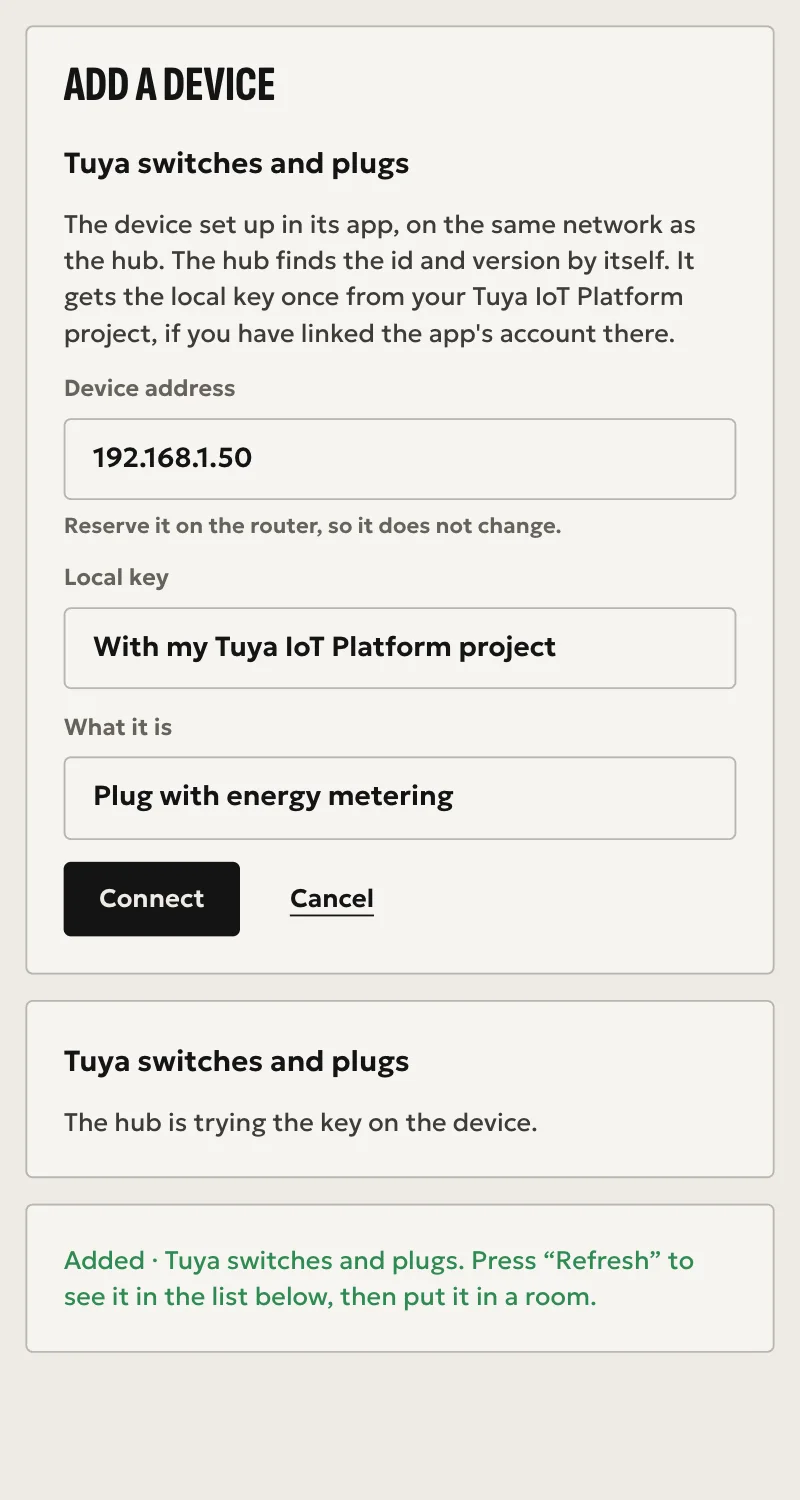
- Press «Εύρεση στο δίκτυο», or «Συσκευές Tuya Wi-Fi», and choose the device it found.
- Under «Local key» keep «Με το project μου στο Tuya IoT Platform» and type the Access ID, Access Secret and region. The hub fetches the key once, does not store the Secret, and remembers it for half an hour for the next devices.
- Choose what the device is and press «Σύνδεση». The hub tries the key on the device, and if it is wrong nothing stays behind.
- For a blind or curtain that opens when you press close, set «Φορά ρολού» → «Ανάποδα» and add it again.
If you already have the key, for example from python -m tinytuya wizard, choose «Θα το γράψω εγώ».
The hub finds the id and version by itself. Type them only if it cannot hear the device on the network.
For a device no ready setting fits, talk to SFK: they see the values the device reports and prepare the mapping.
Zigbee devices behind a gateway
- Add the gateway first, from «Συσκευές Tuya Wi-Fi», with «Τι είναι» → «Gateway Zigbee». The key is the gateway's.
- Then «Zigbee πίσω από gateway Tuya»: choose the gateway, type the device's node id (
node_idin thedevices.jsonofpython -m tinytuya wizard) and what it is. - The hub asks the gateway for the device. If it does not answer, nothing stays behind.
They all talk over one connection, the gateway's. If the gateway's key changes, add the gateway again, and the devices behind it stay.
Do not pair the device again in the Tuya app afterwards: that changes its key.
What works
- Switches, lights with brightness, white, colour and effects, curtains and blinds with position and stop, thermostats, heaters, portable air conditioners, fans, humidifiers and dehumidifiers. A command counts only once the device reports the new value.
- Ready settings from tuya-local for the most common devices, and for a smart plug with current, power and voltage. Its consumption counts in Energy from its power.
- Other devices: mapped from the values the device reports.
- Zigbee devices behind a Tuya gateway: bulbs, switches, leak, door, temperature and humidity sensors.
- Follows the device's own updates and reconnects by itself.
Limits
- Fans do not show in Home yet. Humidifiers and dehumidifiers have a card of their own, on a hub with agent 0.1.88 or later.
- No locks, and no devices that work only through Tuya's cloud.
- On a real device: a 3.4 Wi-Fi dehumidifier, read and its target humidity set. Lights, covers, climate, fans and Zigbee only against simulated devices.
Troubleshooting
- SFK reports a bad key or version → copy the key again and check the protocol version.
- The device does not answer → it is off, or the address is wrong, or it is on another network.
- It worked, and now it shows as unavailable after a new pairing in the Tuya app → the key changed. Fetch the new one, and SFK adds the device again.
- Energy does not show a plug → it needs «Πρίζα με μέτρηση ενέργειας», and the plug to report its power.
- A Zigbee device is not found → check the node id, and that it is paired to the same gateway.