
Switches and covers

Somfy TaHoma
Somfy io and RTS shutters, awnings, garage doors and gates, through a TaHoma, TaHoma Switch or Connexoon on the local network, with Somfy's Developer Mode.
What it does
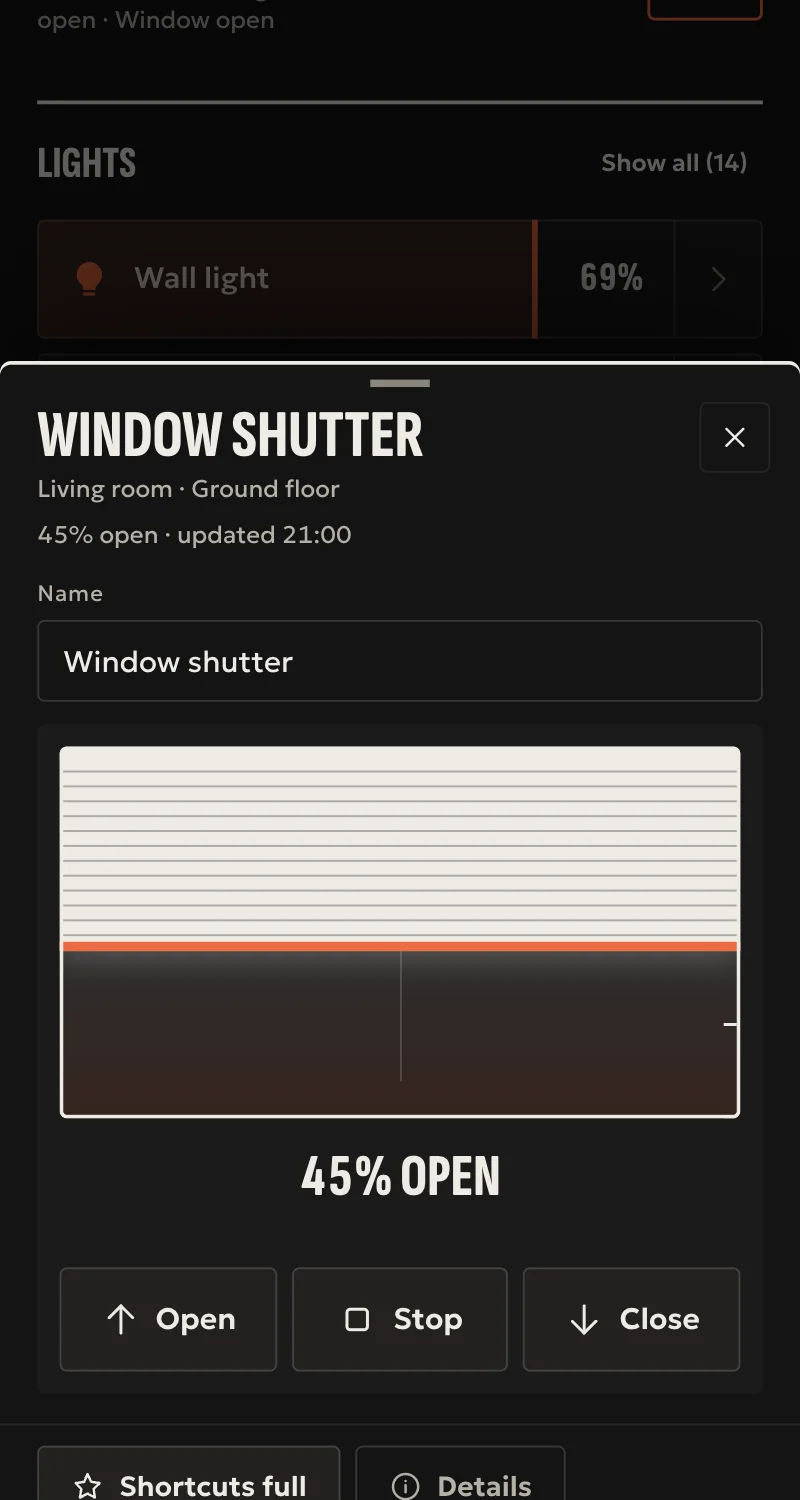
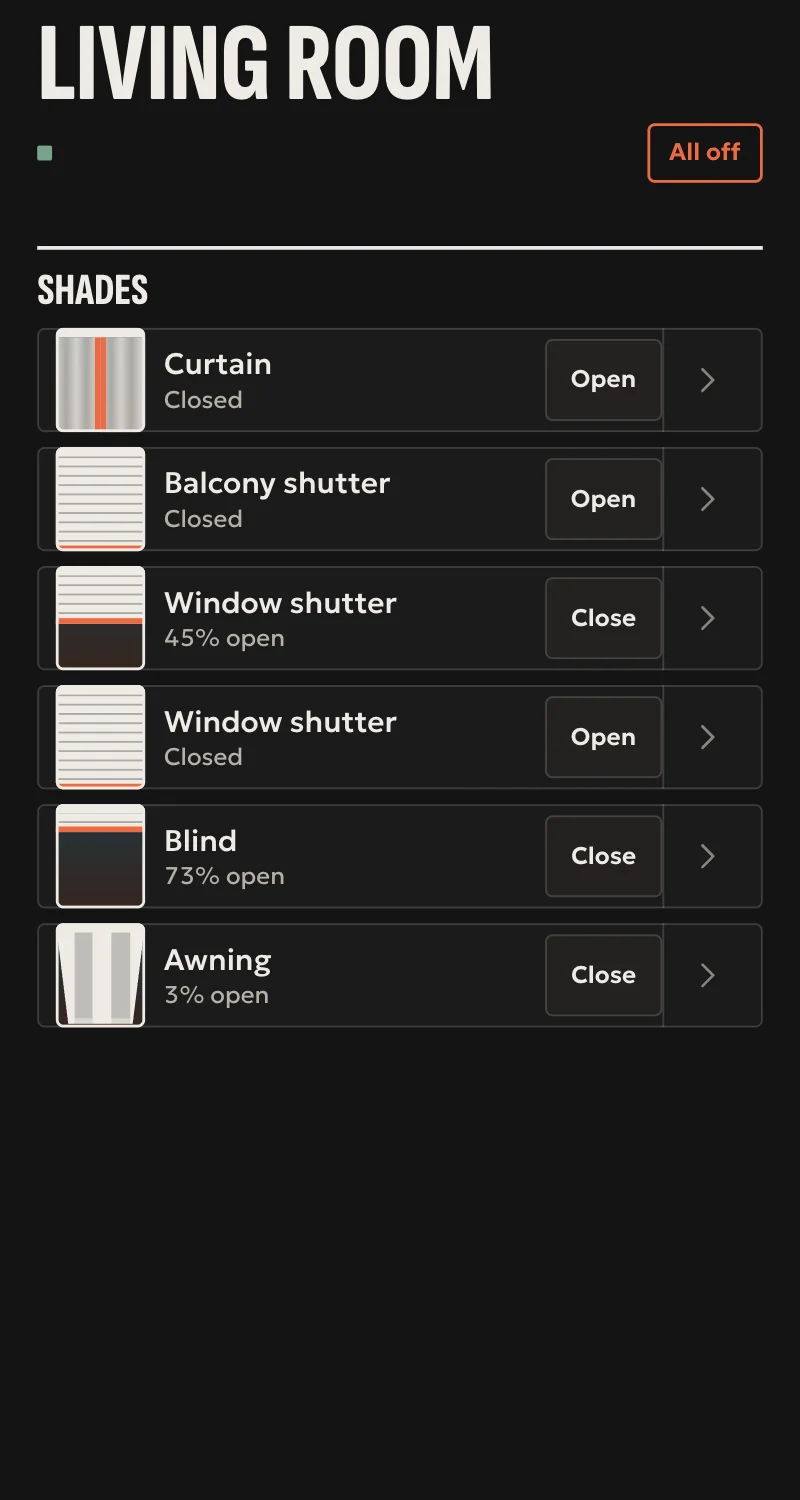
- Shutters, blinds, screens, curtains, windows and pergolas: open, close, stop, and position where the device declares it.
- Awnings: out, in, stop and position.
- Garage doors and gates under the door rules: the installer cannot open them from afar, and a customer's automation may close them but not open them.
- The «my» favourite position as a scene, where the device has it, except on doors.
- io devices: every command is confirmed by reading the device back, and the position refreshes within seconds, also when a remote moves it.
- Added from Partner: the hub finds the TaHoma on the network and asks only for the token.
Worth knowing
- RTS devices do not say where they are: done means the TaHoma sent the command, and the state stays unknown.
- Needs Developer Mode, switched on from the TaHoma app. The first-generation TaHoma and the Connectivity Kit do not have it.
- Slat tilt, a gate's pedestrian position, and Somfy lights, sensors and alarms are not supported.
- Tested against a simulated gateway so far, not yet on a real TaHoma.
Setup guide
Driver: systems.arvio.somfy. Local: the hub talks to the TaHoma on the home's network, through Somfy's Developer Mode.
For Somfy io and RTS shutters, awnings, garage doors and gates, through a TaHoma, TaHoma Switch or Connexoon.
What you need
- The TaHoma on the same network as the hub, with its devices already added in the TaHoma by Somfy app.
- Developer Mode on: in the app, «Configure the installation» → the TaHoma's parameters, then tap 7 times on the gateway's PIN.
- A token from the «Developer Mode» menu. It shows only when it is made: copy it then.
- The TaHoma's address reserved on the router.
How it connects
In Partner, open the hub and go to «Συσκευές» → «Προσθήκη συσκευής».
- Press «Εύρεση στο δίκτυο», or «Somfy TaHoma», and pick the TaHoma it found. It shows with the last 4 digits of its PIN.
- Paste the token.
- Press «Σύνδεση».
When Partner says «Προστέθηκε», press «Ανανέωση» and put each shutter in a room.
What works
- Shutters, blinds, screens, curtains, windows and pergolas: open, close, stop, and position where the device declares it.
- Awnings: out, in, stop and position.
- Garage doors and gates under the door rules: you cannot open them from afar, a member sees them only when given them, and a customer's automation may close them but not open them.
- The «my» favourite position is a scene, where the device has it, except on doors. If the customer does not want it among their scenes, hide it.
- io devices: every command is confirmed by reading the device back, and the position refreshes within seconds, also when someone moves the shutter from the wall or a remote.
Limits
- RTS devices do not say where they are. Done means the TaHoma sent the command, and the state stays unknown. On an RTS garage door or gate, the customer should know this.
- The first-generation (square) TaHoma, the Somfy box and the Connectivity Kit have no Developer Mode.
- Slat tilt, a gate's pedestrian position, and Somfy lights, sensors and alarms are not supported.
- Tested against a simulated gateway so far, not yet on a real TaHoma.
If something goes wrong
- Not found by the search: check that Developer Mode is on and the TaHoma is on the same network as the hub. You can also type its address.
- «Δεν δέχτηκε το token»: make a new token in Developer Mode and try again. Do the same if the customer later deletes the token in the app.
- «Δεν έχει πιστοποιητικό Somfy»: another device answers at that address. Check the TaHoma's address on the router.
- Everything «Χωρίς σύνδεση» later: the TaHoma changed address or was switched off. Reserve its address on the router and add it again with the new one: the devices keep their rooms and names.
- A device is missing: add it in the TaHoma app first. If it is not a shutter, awning or door, it does not show.