Cameras

RTSP cameras
Cameras with only an RTSP address and no ONVIF, on the local network: live video in Home.
What it does
- Added from Partner with an address, user and password, and tried before it is kept.
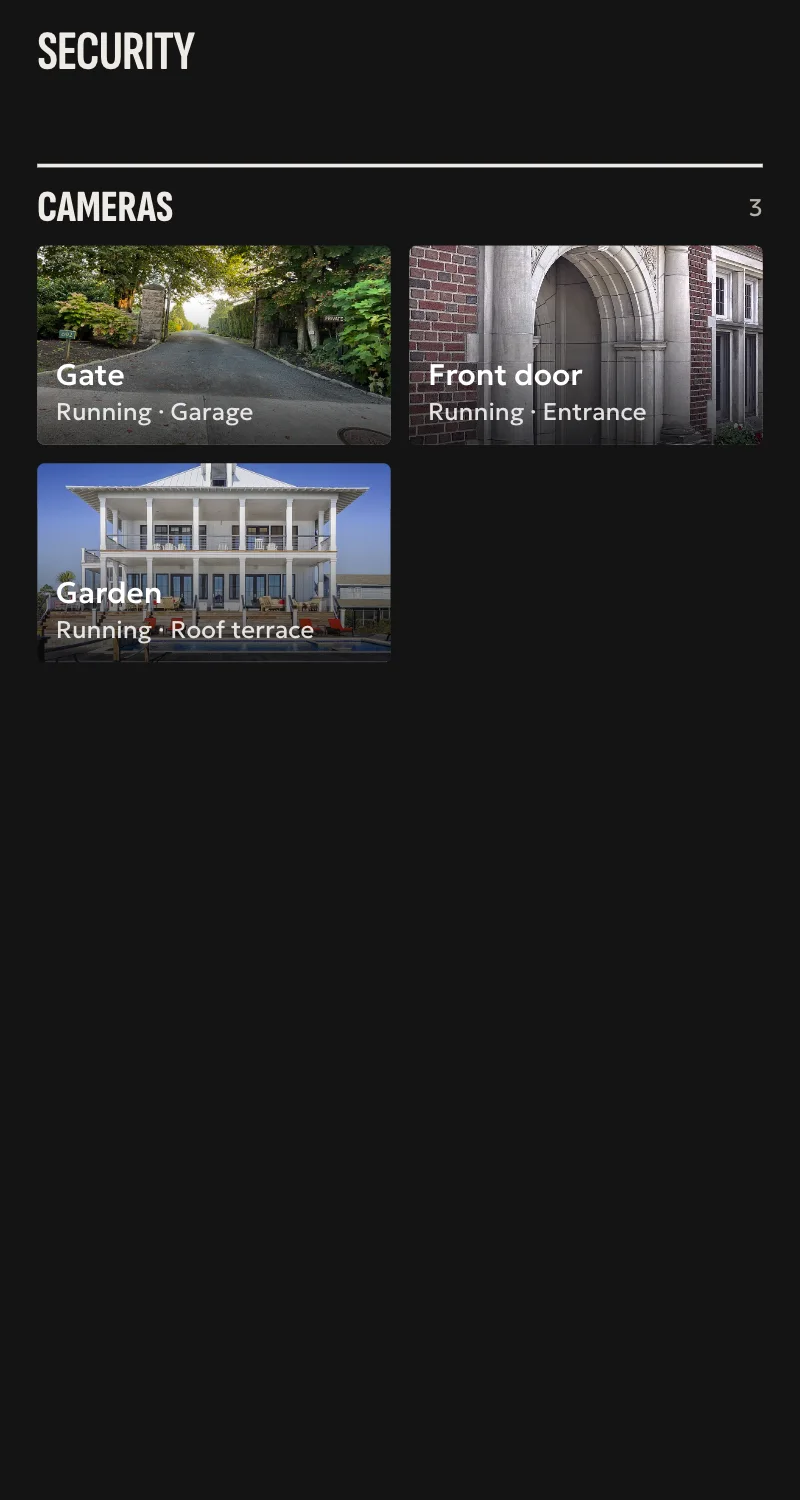
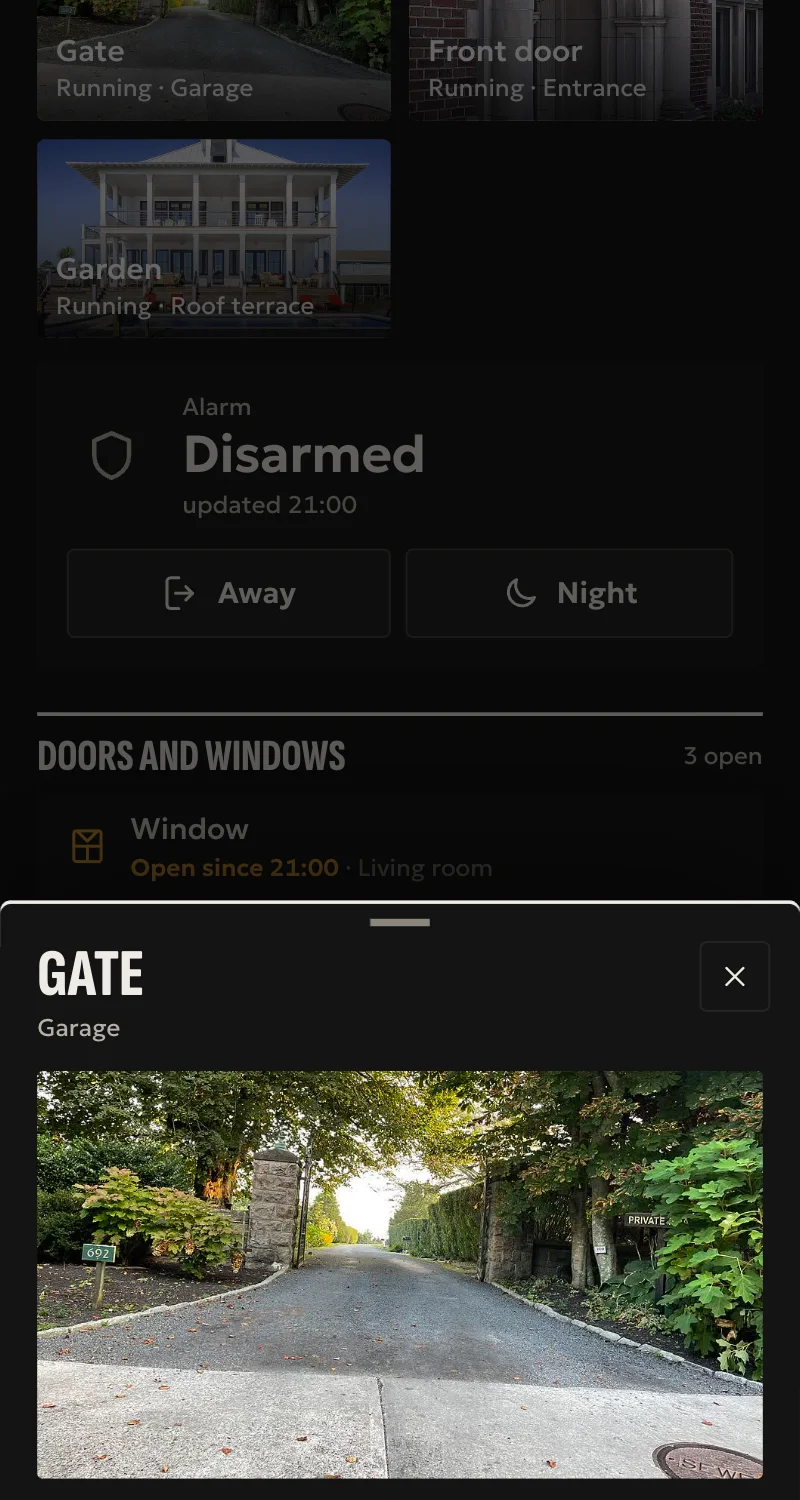
- Live video in Home and in the app.
- A still picture from one frame of the stream.
- Shows as offline when the camera stops answering.
Worth knowing
- Only cameras on the local network.
- H.264 only, and no sound.
- No motion, pan, tilt or zoom. A camera with ONVIF gets those from the ONVIF driver.
- So far tested against a simulator, not yet on a real camera.
Setup guide
Driver: systems.arvio.rtsp. Local: it needs no internet and no maker's account. The address and password stay on the hub.
For cameras that offer an RTSP stream but not ONVIF. If the camera has ONVIF, prefer the ONVIF driver, which finds the stream by itself and brings motion and still pictures.
What you need
- The camera on the same network as the hub, with RTSP turned on.
- The RTSP address from its manual or settings, such as
rtsp://192.168.1.60:554/stream1. - The camera's address reserved on the router.
How it connects
In Partner, open the hub and go to Devices → Add a device.
- Choose the camera with an RTSP address.
- Enter the address, and a user and password if it asks for them.
- Press Connect. The hub tries the address before keeping it.
When Partner says it was added, press Refresh and put it in a room.
What works
- Live video in Home and in the app.
- A still picture, taken from one frame of the stream.
- The camera shows as offline when it stops answering.
Limits
- Only cameras on the local network.
- H.264 only. The stream passes through unconverted.
- No sound, motion, pan, tilt or zoom.
- So far tested against a simulator, not yet on a real camera.
If something goes wrong
- Wrong user or password: try them on the camera's own page.
- No stream on that path: the camera answers, but the path after the port is different. Check the manual.
- The hub found no camera: check the address, the port and that RTSP is on.