Switches and covers
Fibaro / Yubii Home
Fibaro Home Center 3 and Yubii Home (Nice) controllers on the local network: shutters, gates, switches, dimmers, locks, scenes and sensors.
What it does
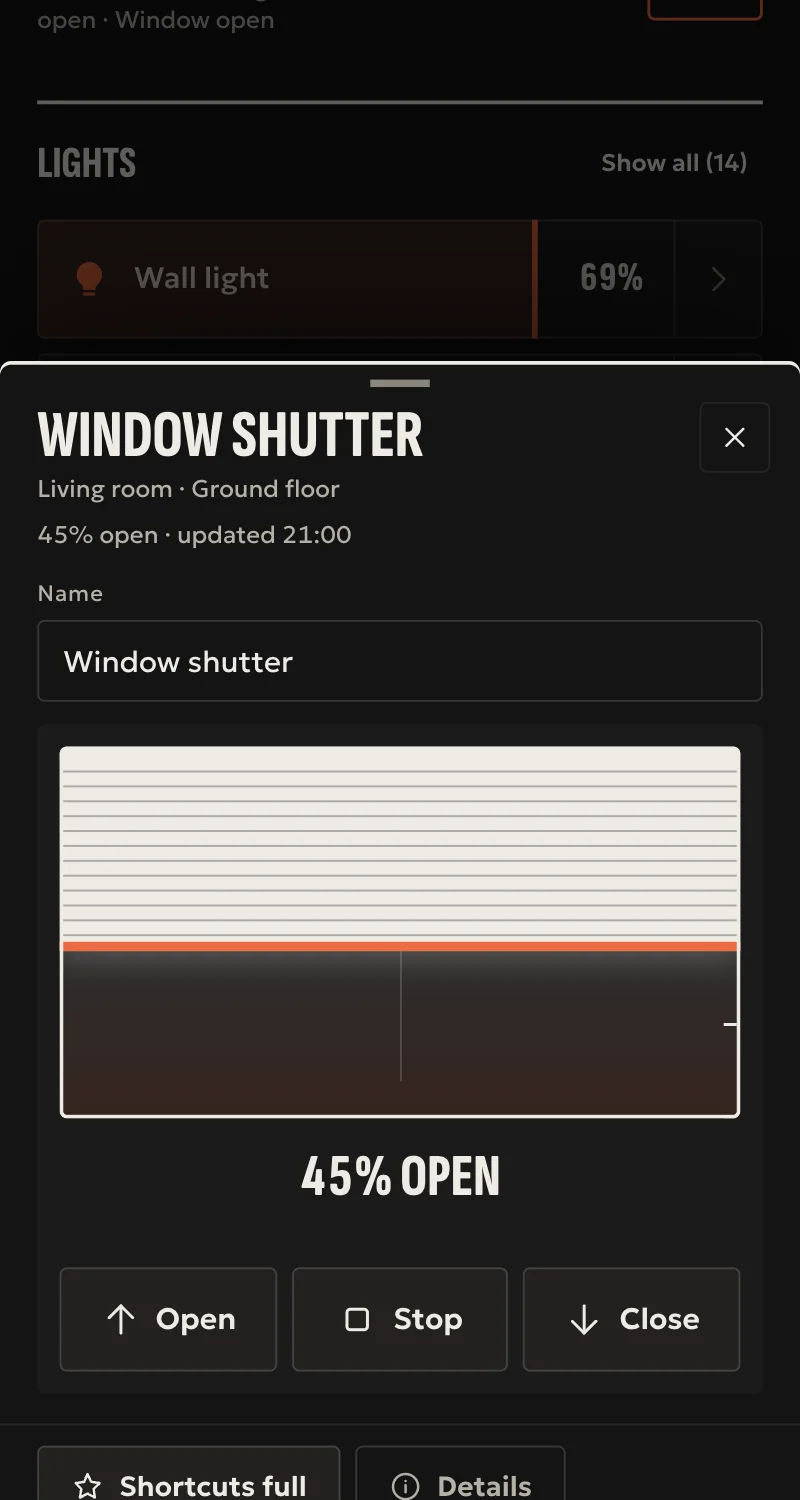
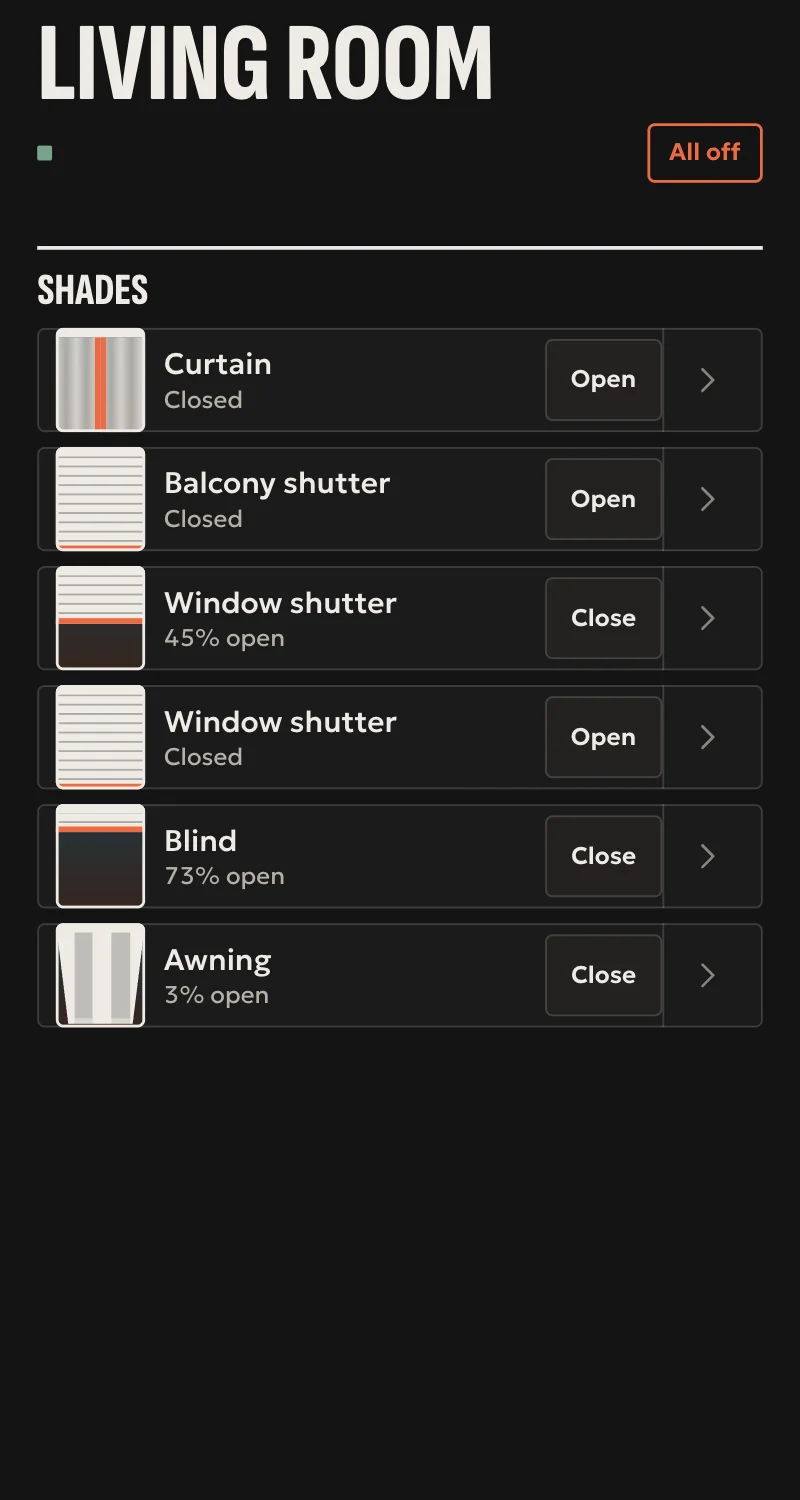
- Shutters and gates: open, close, stop, and set position where the device has one.
- Relays and dimmers: on, off, toggle, brightness.
- Locks: lock and unlock. Unlocking needs confirmation in the app.
- The controller's scenes: run.
- Temperature, humidity, light and energy sensors, plus the power and energy readings a device carries.
- On/off sensors: door, window, flood, motion, smoke, heat.
- Thermostats and Climate panel zones: mode, temperature, fan.
- Colour lights, and gates with step-by-step in automations.
- Remotes and wall switch buttons: listed with your devices, and each button starts automations.
- Batteries: a card on the hub, and automations that start from their value.
- Each device's functions, variables, parameters and associations in Partner, read only.
- The controller's scenes are copied as automations you can edit, off until you turn them on.
- Each device suggests the room it has on the controller.
- Every command is confirmed from the controller. If nothing shows, it is reported as not confirmed.
Worth knowing
- Quick Apps and the controller's alarm are not supported.
- Lua scenes are not copied, and notifications from the others go to the whole house.
- Z-Wave devices are still added and removed on the controller, and parameters and associations change there.
- Devices disabled or hidden on the controller stay out of Arvio.
- Needs a username and password on the controller. They stay on the hub.
Setup guide
Driver: systems.arvio.fibaro. Local: no internet needed.
For Fibaro Home Center 3 and Yubii Home (Nice) controllers. Arvio talks to the controller, and the controller talks to the Z-Wave devices.
What you need
- The controller on the same network as the hub, with its devices already added and working.
- The controller's address. Reserve it in the router.
- A username and password on the controller.
- Rooms named on the controller, if you want devices to arrive in the right room.
How to connect
If the driver is not in «Προσθήκη συσκευής» (Add device), bring it into the installation first: Marketplace → this driver → «Εισαγωγή σε εγκατάσταση» (Import into installation). Whatever «Εύρεση στο δίκτυο» (Find on the network) finds comes in by itself.
In Partner, open the hub and go to «Συσκευές» (Devices) → «Προσθήκη συσκευής» (Add device) → «Fibaro / Yubii Home».
- Check the devices you want in Arvio are enabled and visible on the controller.
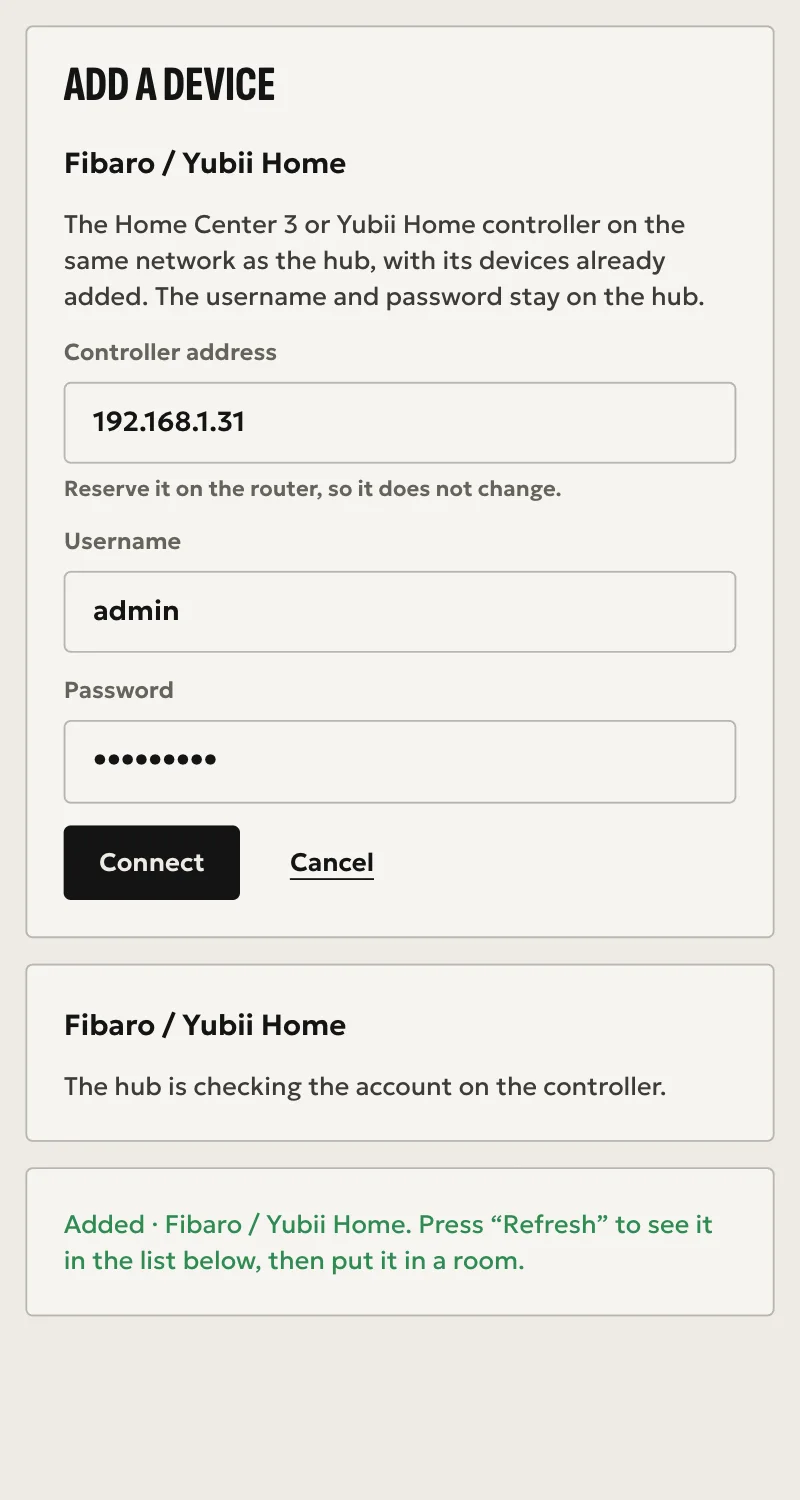
- Type the controller's address, the username and the password. The hub does not look for controllers on the network, so the address is typed by hand.
- Press «Σύνδεση» (Connect). The hub checks the account on the controller at once.
When Partner says «Προστέθηκε» (Added), press «Ανανέωση» (Refresh). Devices and scenes appear in the «Συσκευές» list, each suggesting the room it has on the controller. Anything else you place from «Δωμάτια» (Rooms). A controller room called "hidden" is not suggested.
The username and password pass through Arvio's cloud only to reach the hub, and are not kept there.
What works
- Shutters and gates: open, close, stop, and set position where the device has one.
- Relays and dimmers: on, off, toggle, brightness.
- Locks: lock and unlock. Unlocking needs confirmation in the app. Test a lock only with someone at the door.
- The controller's scenes: run.
- Thermostats: mode, temperature and fan. Each active zone of the Climate panel is one climate device: a change from Arvio holds until you press «Πρόγραμμα» (Schedule).
- Colour lights: colour and brightness.
- Gates with a single command: «Βήμα-βήμα» (step-by-step) in automations.
- Batteries: the «Μπαταρίες» (Batteries) card on the hub, and automations that start from their value.
- Temperature, humidity, light and energy sensors, plus the power and energy readings a device carries.
- On/off sensors: door, window, flood, motion, smoke, heat.
- Remotes and wall switch buttons: listed with your devices, and each button starts automations. A switch with its own relay stays a switch, with its buttons next to it.
- A device or scene deleted or hidden on the controller also leaves Arvio, within ten minutes.
- In «Συσκευές» (Devices), a device's arrow shows its functions, variables, parameters and associations as the controller gives them. Anything that looks like a password stays hidden, and a Quick App shows only its functions.
- The controller's scenes are copied on connecting, as automations you can edit in Partner. Copies stay off until you turn them on, because with the original also running everything would happen twice. The canvas says what did not come over. For scenes added to the controller later, press «Αντιγραφή» (Copy) under «Σενάρια του Yubii» (Yubii scenes) in Automations.
- Every command is confirmed from the controller. If nothing shows, it is reported as not confirmed.
Limits
- Quick Apps and the controller's alarm are not supported. A thermostat split across several devices must have its mode and temperature on the same one.
- Lua scenes are not copied. From the others, notifications go to the whole house, and notifications with buttons, the alarm, people and weather do not come over.
- Z-Wave devices are still added and removed on the controller, and parameters and associations change there.
- Devices disabled or hidden on the controller stay out of Arvio.
- The username and password stay on the hub. If you change the password, add the controller again from the same screen.
Troubleshooting
- Partner says the username or password is wrong → correct them and press «Σύνδεση» (Connect) again.
- Partner says something answers at that address, but not a Fibaro controller → check the address.
- Partner says the controller does not answer at that address → check the address, and that the controller is on and on the same network.
- Everything shows as unavailable → the controller is off or unreachable. The driver reconnects by itself when it is back.
- A Z-Wave device obeys but Home shows «Δεν έγινε» (not done) → the device does not report to the controller by itself. This is typical of a Shelly Wave. Fix it on the controller: check the device's Lifeline association (group 1 → controller, multi-channel).
- A device is missing → it is disabled or hidden on the controller, or it is a type listed under Limits.
- Partner says the hub runs an older version of Arvio Core → the hub needs updating. Ask SFK for it, then try again.