Switches and covers

Sonoff eWeLink LAN
Sonoff switches, plugs and LED strips in LAN mode. Devices in eWeLink mode need a device key, fetched once from the eWeLink cloud. DIY-mode devices need none.
What it does
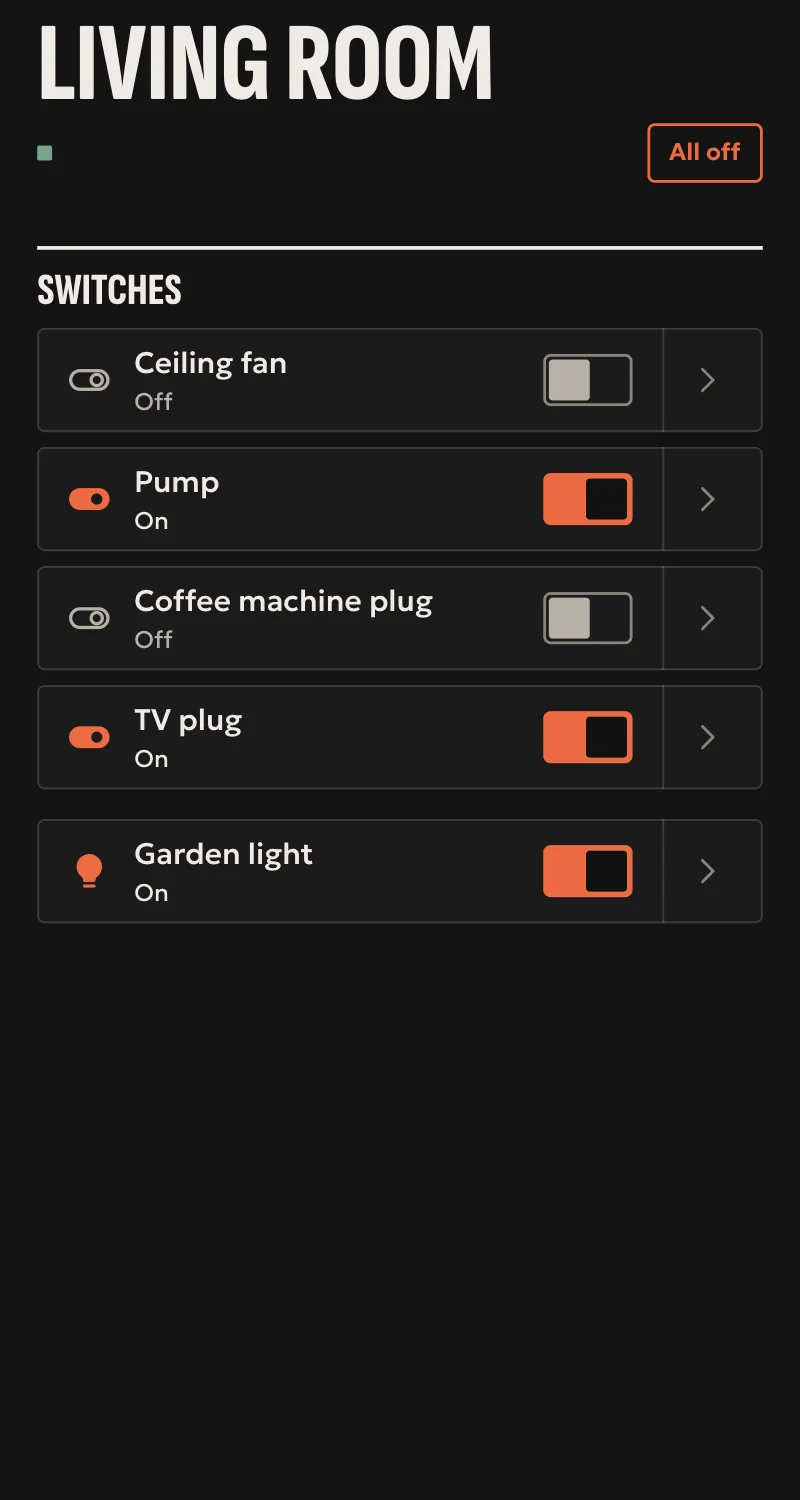
- Switches and plugs with one to four channels: on, off, toggle, per channel.
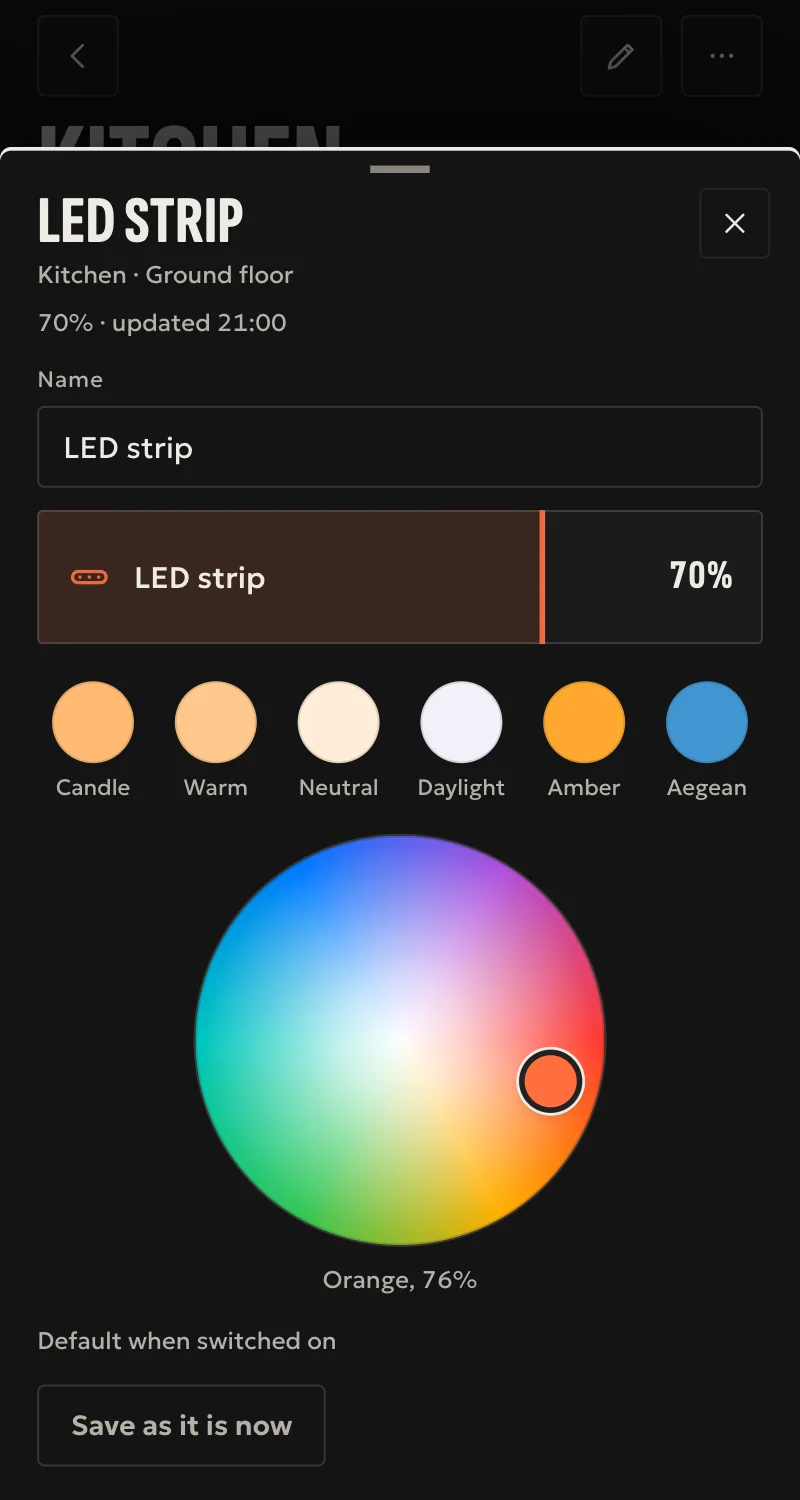
- L1 and L3 LED strips: on, off, brightness and colour.
- The hub finds them on the network by itself.
- Every command is confirmed by the device's reply and the state it reports.
- A device that misses three checks in a row shows as unavailable.
Worth knowing
- NSPanel Pro, TH, POWR3, DualR3 and SPM sub-devices are not supported.
- Energy and signal readings and strip effects are not shown.
- Some L1 strips may not answer on the local network.
- The hub has to see the devices' mDNS announcements on the network.
- Tested against a simulated device so far, not yet on a real one.
Setup guide
Driver: systems.arvio.ewelink. Local once connected: the driver never talks to the eWeLink cloud. A device in eWeLink mode needs a key that comes once from that cloud, so that one step needs the account and internet.
For Sonoff switches and plugs with one to four channels, and L1 and L3 LED strips.
What you need
- The device on the same network as the hub, in LAN mode.
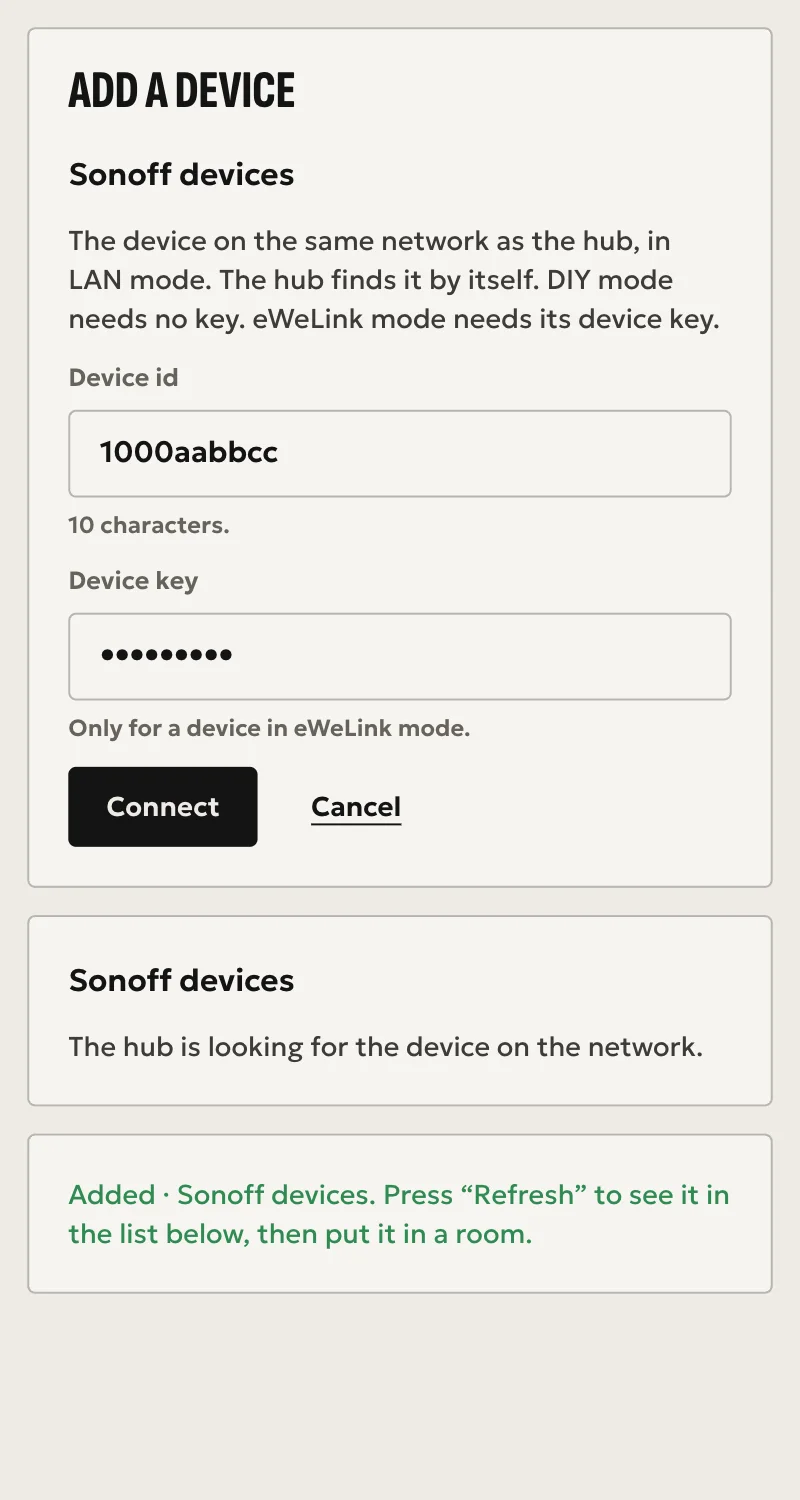
- Its device id (10 characters).
- For a device in eWeLink mode, its device key. A DIY-mode device has none.
- Access to the eWeLink account that owns the device, for fetching the key.
How to connect
If the driver is not in «Προσθήκη συσκευής» (Add device), bring it into the installation first: Marketplace → this driver → «Εισαγωγή σε εγκατάσταση» (Import into installation). Whatever «Εύρεση στο δίκτυο» (Find on the network) finds comes in by itself.
In Partner, open the hub and go to «Συσκευές» → «Προσθήκη συσκευής».
- Press «Εύρεση στο δίκτυο», or «Συσκευές Sonoff», and choose the device it found.
- In eWeLink mode, type the device key. In DIY mode, leave it empty. For the key, ask SFK.
- For a switch with more than one channel, choose how many.
- Press «Σύνδεση». The hub checks that it sees the device and can read it with the key, and if not, nothing stays behind.
What works
- Switches and plugs with one to four channels: on, off, toggle, per channel.
- L1 and L3 LED strips: on, off, brightness and colour.
- Every command is confirmed by the device's reply and the state it reports.
- A device that misses three checks in a row shows as unavailable.
Limits
- NSPanel Pro, TH, POWR3, DualR3 and SPM sub-devices are not supported.
- Energy and signal readings and strip effects are not shown.
- Some L1 strips may not answer on the local network.
- Tested against a simulated device so far, not yet on a real one.
Troubleshooting
- A device stays unavailable → it is off, or the hub does not see its mDNS announcements. Check that they are on the same network segment.
- SFK reports the state cannot be read → the device key is probably wrong. Fetch it again.
- SFK reports the model is not supported → it is one of the models listed under Limits.
- Home shows «Δεν έγινε» (not done) for a command → the device did not report the new state within 5 seconds. Try again.